

Gefyra on SysEleven MetaKube
Prerequisites
- You have a MetaKube account and privileges to create a new cluster
- Follow the installation of Gefyra for your preferred platform
Setup a cluster
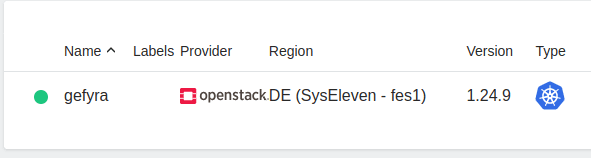
You may follow this guide to create a cluster using the MetaKube management console.
This guide assumes you are running an OpenStack-based Kubernetes cluster on SysEleven.
Important: Before Gefyra can connect from outside the cluster, you must set the security group of the nodes to allow UDP traffic on port 31820.

Please set the direction to Ingress and the protocol to UDP. The port range should be set to 31820 and the source CIDR to 0.0.0.0/0. That way, Gefyra can connect to any data plane node of the cluster using a Floating-IP.
After all of the MetaKube components are ready, you can download the kubeconfig to access the cluster using kubectl. Just click on the "Download Config" button in the MetaKube management console and save the file to your local machine.
Running Gefyra
- You may apply some workload, for example from Gefyra's testing directory:
kubectl apply -f https://raw.githubusercontent.com/gefyrahq/gefyra/main/testing/workloads/hello_dd.yaml
- At first, we need a host IP of one of our nodes. You can get it by running:
kubectl get nodes -o wide | awk {'print $1" " $2 " " $7'} | column -t
Pick one of them from the EXTERNAL-IP column.
- Now you can run
gefyra up --host <IP>
using the IP you just picked. This will create the Gefyra components in your cluster and local host.
- Run a local container with Gefyra (Zero Image Build):
# 1. Create a local response file
mkdir -p /tmp/local-server
echo "<h1>Hello from Gefyra. Live local code served directly into SysEleven!</h1>" > /tmp/local-server/index.html

# 2. Run the local container in Gefyra
gefyra run \
  -i python:3.12-alpine \
  -N mypyserver \
  -v /tmp/local-server:/app \
  -c "python3 -m http.server 8000 -d /app" \
  -d
- Exec into the running container and verify cluster access:
docker exec -it mypyserver sh
wget -O- hello-nginx
exit
- Mount the workload and create a bridge to redirect traffic to your local container:
# 1. Mount the deployment with Carrier2
gefyra mount create --target deployment/hello-nginxdemo/hello-nginx --name mymount

# 2. Bridge traffic to your local container
gefyra bridge create --mount mymount -p 80:8000 -t mypyserver --match-path-prefix /
- List active mounts and bridges:
gefyra bridge list
gefyra mount list
- Remove the bridge and unmount the workload to reset the cluster:
# Delete the bridge
gefyra bridge delete <bridge-id>

# Unmount the workload and restore original container image
gefyra mount delete mymount
Cleaning up
Remove Gefyra's components from the cluster with gefyra down
Elastic Kubernetes Service (EKS)
Connect Gefyra to Amazon EKS — configure NLB or NodePort access for WireGuard (UDP 31820) and develop against live AWS staging clusters.
Getting Started
Hands-on Gefyra demos — Go hot-reload, OAuth2 sidecars, GKE remote development, and running any container inside a Kubernetes namespace.